Oral Health: Essential for Children to the Elderly In Nepal, oral cancer is more common in men over 50 years of age, and smoking is the main cause, and new cases have increased by 35.71 percent. 'In today's busy lifestyle, not all of us are able to keep our mouths healthy, which directly affects our overall physical health. Therefore, a healthy mouth is a healthy life.' The slogan of World Oral Health Day 2026 is 'A Happy Mouth is a Happy Life'. Due to their damaged teeth, they are afraid and hesitant to speak or laugh in front of a crowd of people. This also affects their mental health. On the other hand, they feel inferior and consider themselves weak. There are many problems that arise from not keeping their mouths healthy. Nowadays, various types of problems are seen in the teeth of young children to the elderly. Dental problems and pain also affect a person's eating and sleeping habits, which negatively affects their overall physical health. Today, abou...
How to Clear Cache on Android Device
If you feel that your Android phone or tablet is slow, then you can solve this problem yourself. The first thing you should do as a solution is to restart the mobile. Similarly, another thing that can be done is to clear the mobile storage.
In some cases these remedies work. But this is not a long-term solution. The most important task is to clear the cache of the device.
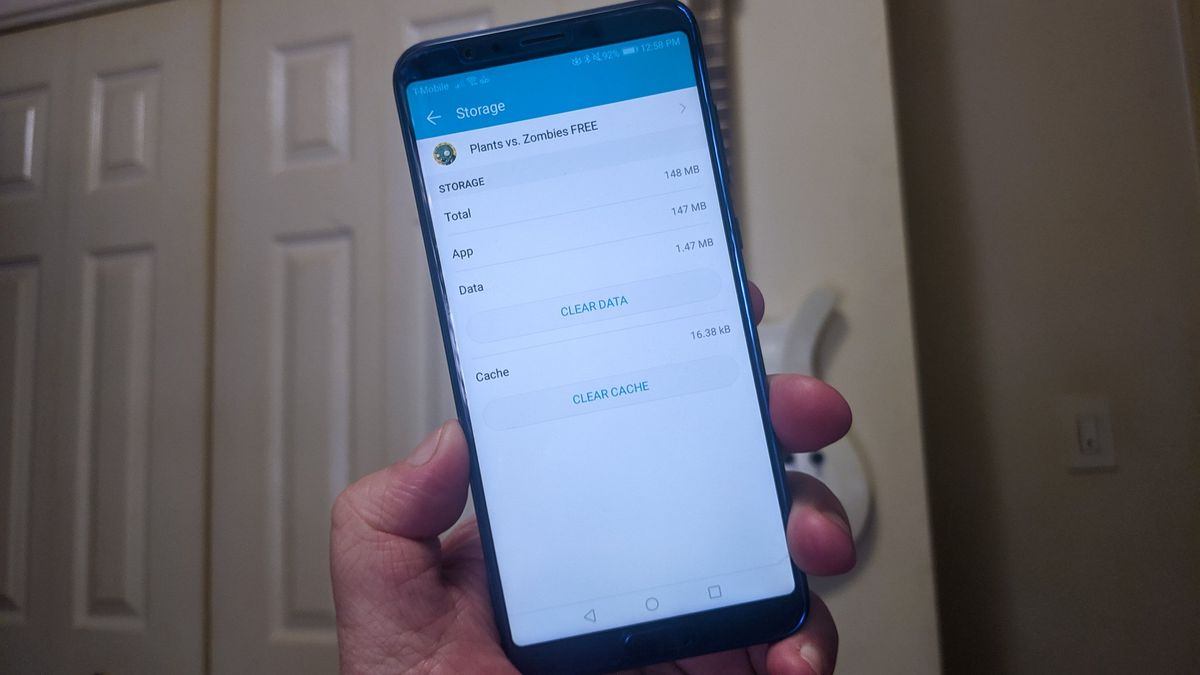
It helps to delete unnecessary data on your device. Our devices have cache data of various apps, links and browsers. How to remove that cache data is mentioned here.
How to clear app cache data:
1. View a list of apps installed on your phone or tablet
To see the list of apps installed on your device, go to your mobile's settings and click on Storage. After this click on 'App' option. In some phones, you can find an option called Apps directly within the Settings app without going to the storage. Or you can find the list by going to the mobile search box and typing the app.
Generally, apps are grouped together according to size. If this is not the case, by clicking on the three dots on the top right side of the mobile and clicking on 'Sort by Size', the list of apps from the largest to the smallest can be arranged.
2. Clear the app's cache
Select any app in your app list and click on that app. After this you can see the details like its size, user data, cache size, total storage etc. At the top of the page there will be two options; Clear Storage and Clear Cache.
Click on the clear cache option. In this way, the cache of each app can be removed.
How to Clear Chrome's Cache
- Open the Chrome app on your phone or tablet
- Click on the three dots at the top right of the screen
- Click on the History option and click on 'Clear Browsing Data'. Here comes various options where the details like what kind of data is stored and what kind of details it stores. Based on the same details, you can remove the data you don't need.
Google Maps can be used even without internet
Google Maps has become an integral part of our daily life. Today, if we have to go to a new place, we can easily find the location of our destination using Google Maps.
Generally, we use the internet to use Google Maps. But there are also some such places, where internet access may not reach well. How to use Google Maps in such a situation.
If you are planning a trip where there is no internet service, you can download offline maps on Google Maps.
How to download google maps offline?
If you download the map like this before going on a trip, you can use it with directions even when you are offline. You don't need to download Google Maps completely for this. Before your trip, you can choose and download a map of your destination.
To download Google Maps for offline use, open the Google Maps app on your iOS or Android device. After this, tap on your profile at the top right of the screen. After this click on the option written offline map and select your map.
Use your fingers to place the map you want to download within the bounds of the rectangle. You can zoom in and zoom out using just one finger to move your location on the map.
Select your location and tap on download. After this you will reach the main page of the map.
Later on during your journey you can find your location as soon as you open the map.
Comments
Post a Comment
If you have any doubts. Please let me know.